
V8N
Calibration Instruction
Got problems?
All in one truck tracking platform
Calibration
Instruction
Step 1
Finish device installation following the instructions.
Step 2
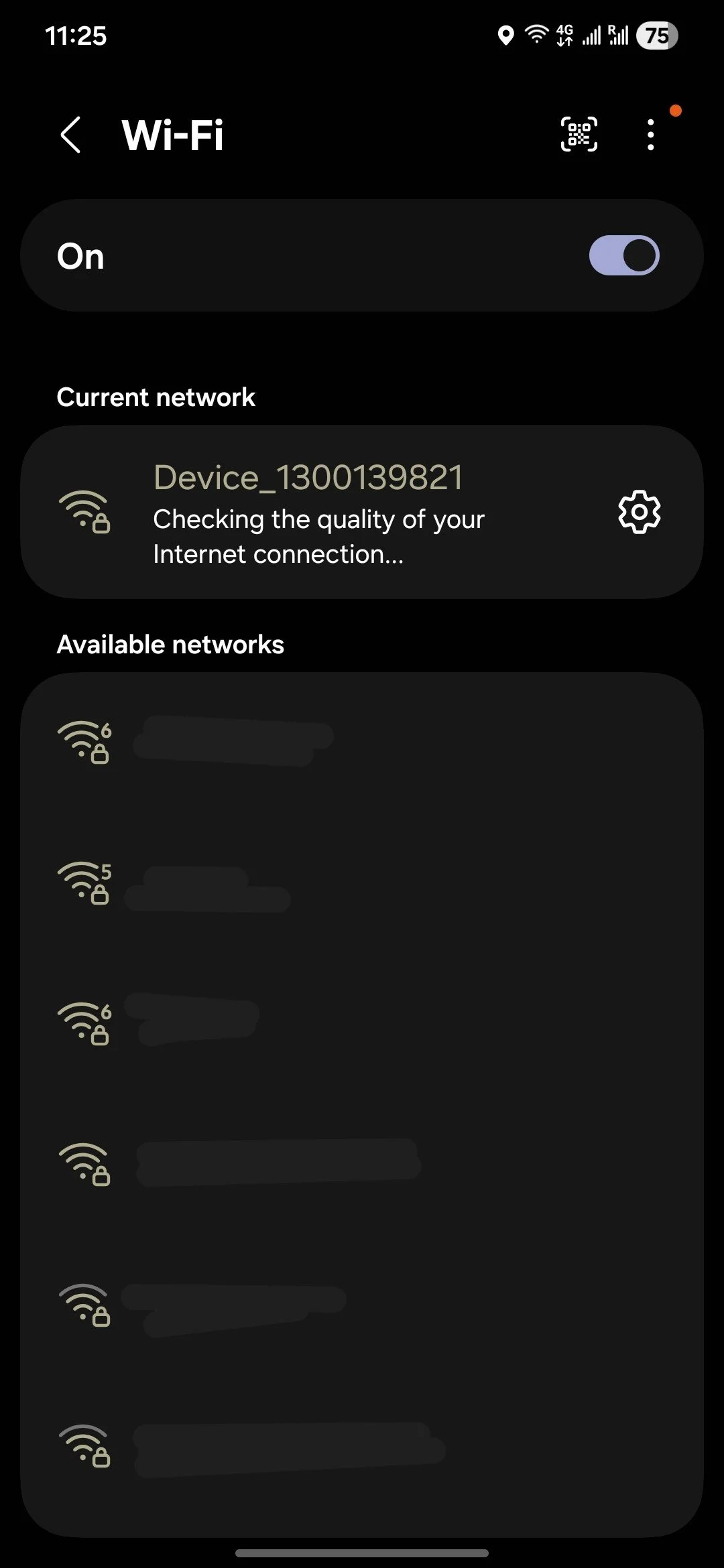
Take a mobile device, download the calibration APP.


Step 3
Turn the truck to the start position, and the V8N will power on automatically. The engine does not need to be running.
Please wait for the V8N to fully start up; this may take up to a few minutes.
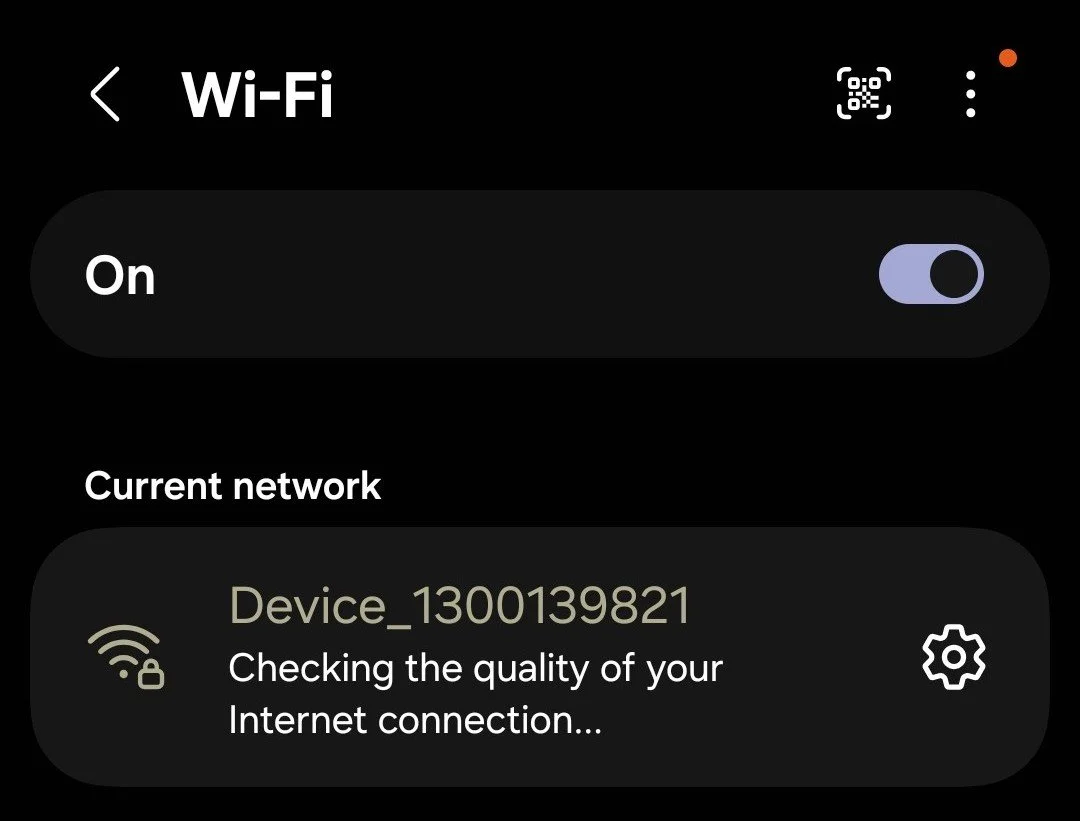
Open the Wi-Fi settings on your mobile device. Once the V8N has fully started, a Wi-Fi network named Device_1300xxxxxx will appear.
Turn off cellular data on your mobile device and connect to the V8N Wi-Fi network (Device_1300xxxxxx). You may see a warning about no internet access; please select Continue without internet.
Step 4
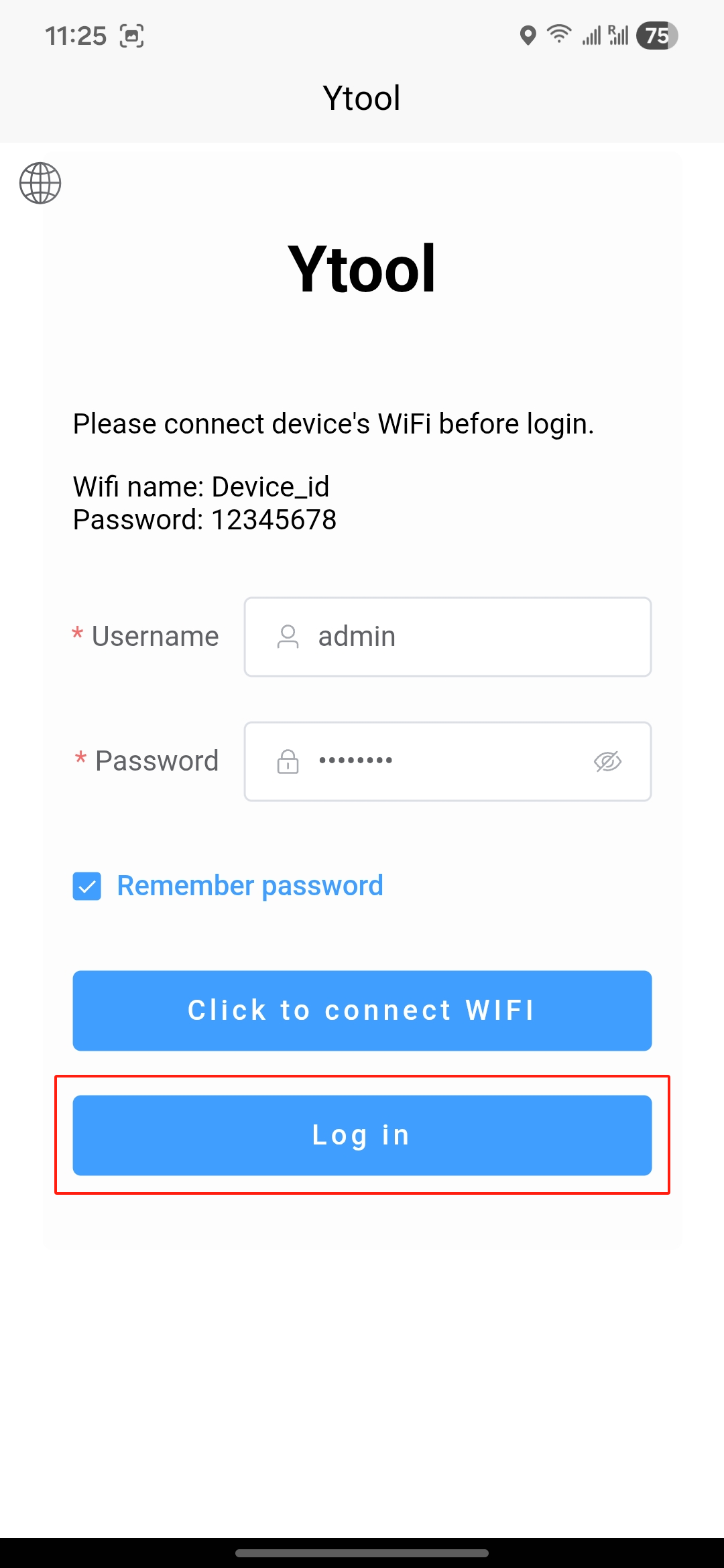
Once connected to V8N wifi (Device_1300xxxxxx), open the calibration APP Ytool, click Log in
Step 5
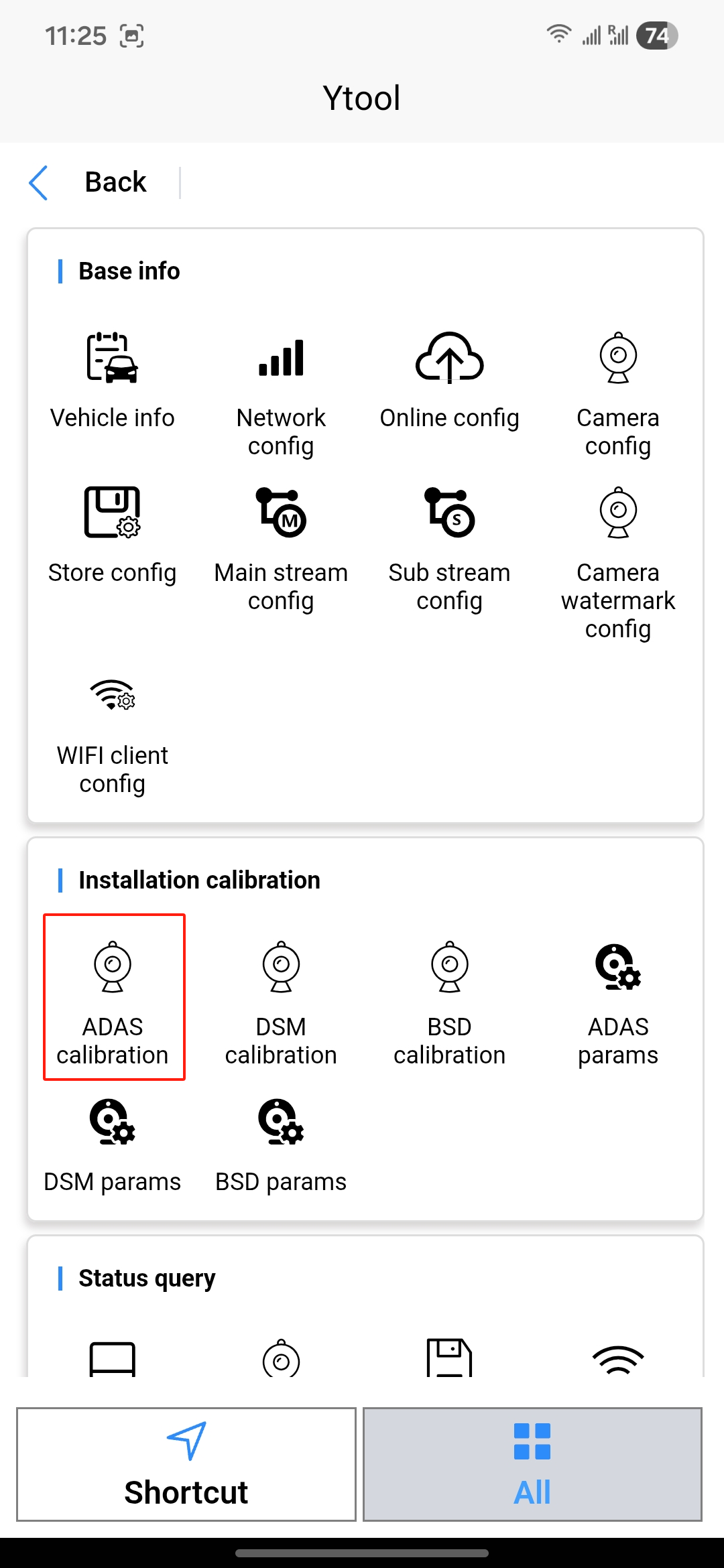
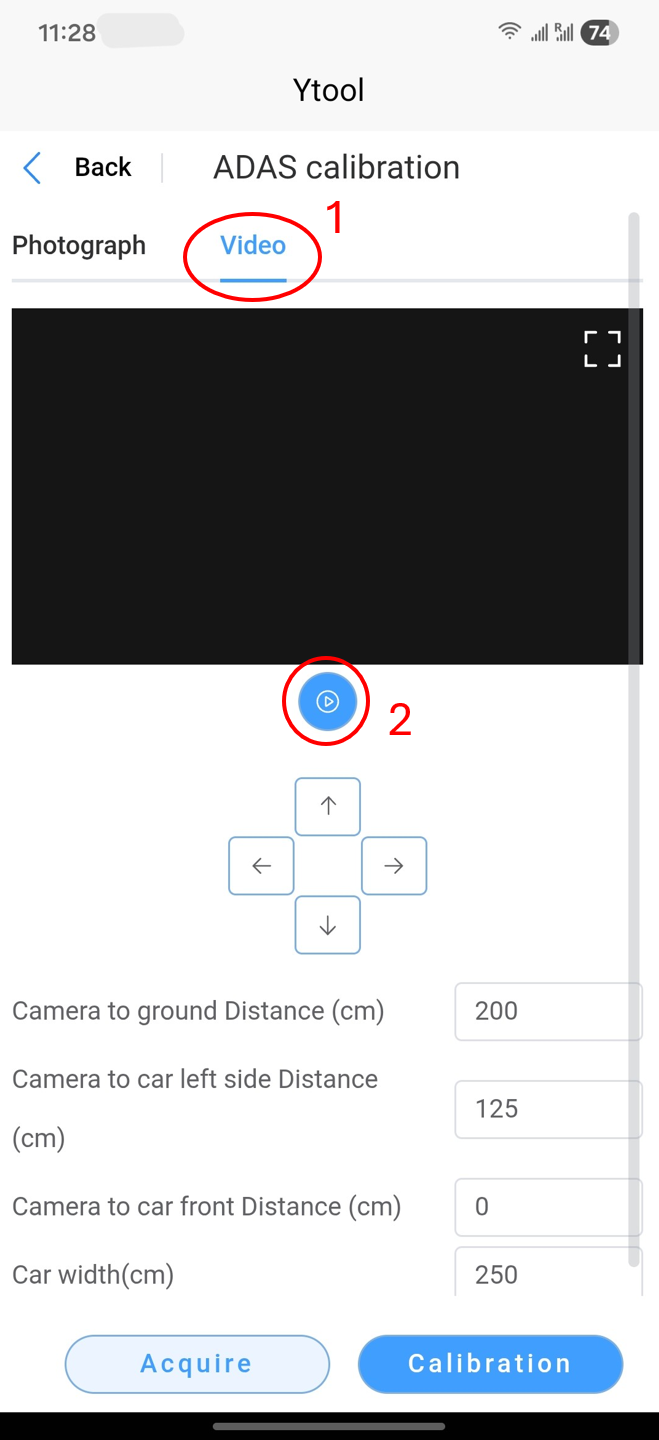
Configer ADAS (Advanced Driving Assistance System)
This camera faces the road. Make sure it has a clear, unobstructed view of the road.
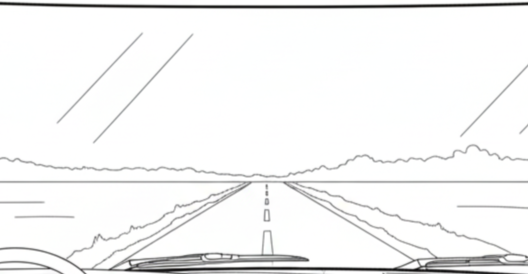
Road view example
Step 6
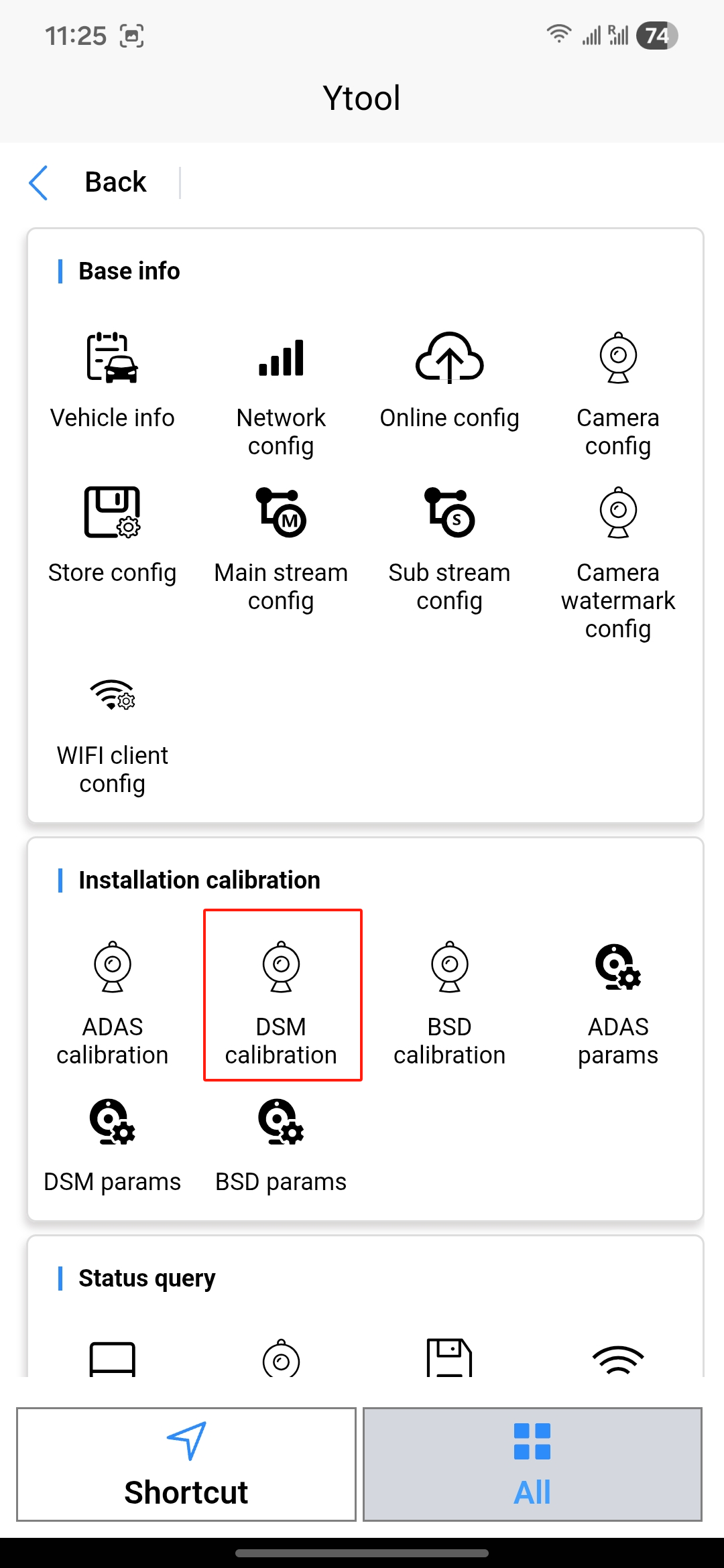
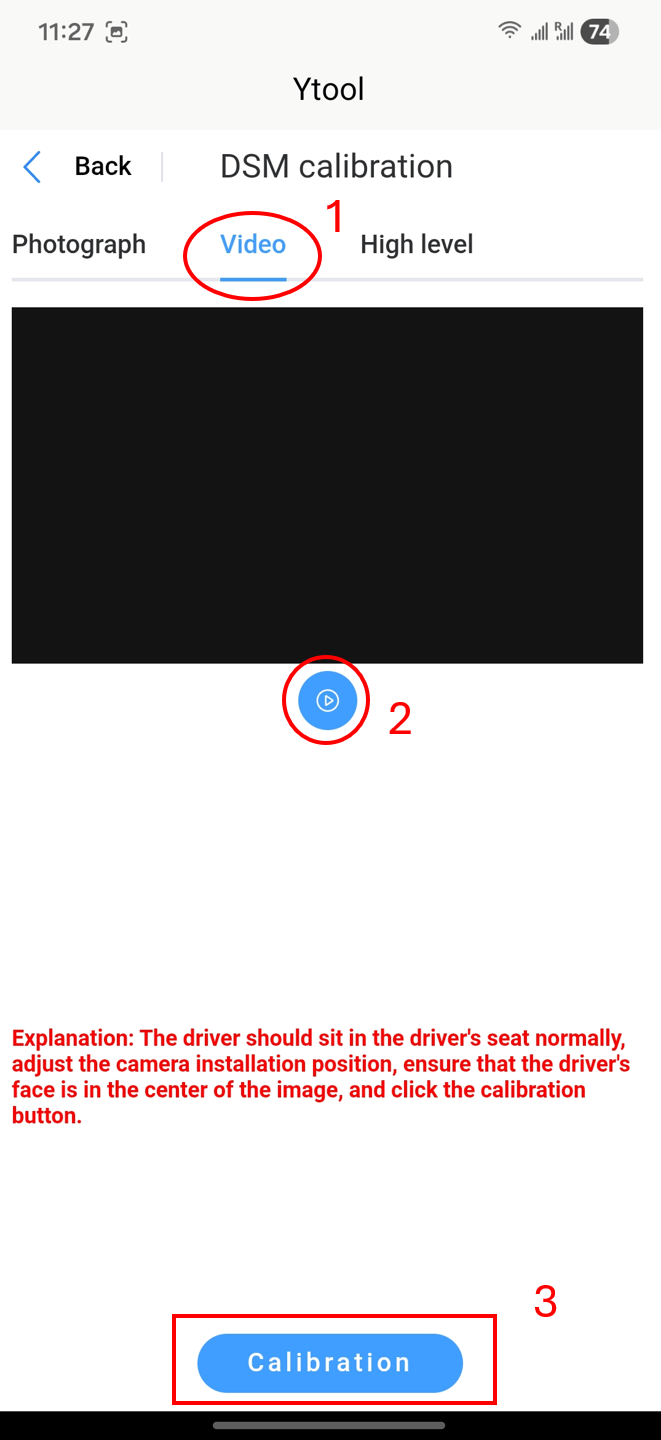
Configer DSM (Driver Safety Monitoring)
This camera faces the cabin. Ensure it has a clear, unobstructed view of the driver's face.
Step 7
All set! Your V8N should now be up and running. You can access our professional management terminal to monitor your fleet in real time.